For our first live well with sight loss session we were joined by Dr Jasleen Jolly from the Anglia Ruskin University in Cambridge talked about the latest develops in Gene Technology for treating eye conditions.
00:00 – Start
00:56 – Dr Jasleen Jolly Intro
01:54 – Why is Gene Therapy Important
03:10 – Current UK Centres
03:49 – A Patients Experience
05:06 – Researching Treatment
09:48 – BBC News Report about Gene Therapy
12:43 – The Gene Therapy Triangle
13:22 – Surgery
14:25 – Measurement
14:27 – Measurment – Patterns of Visual Function
20:08 – Measurement – Imaging
23:06 – Measurement – Visual Field
26:48 – Measurement – Structure – Function Analysis
27:11 – Measurement – Brain Function
29:49 – Charles Bonnet Syndrome
32:01 – Questions and Answers
32:39 – Question – Glaucoma
35:32 – Question – Macular Degeneration
36:40 – Question – Charles Bonnet Study Volunteers
37:06 – Question – PXE
38:23 – Question – How to find out what the defect gene is in Stargardt disease
40:21 – Question – Recessive RP
42:25 – Question – Retinal Scaffold for RP
43:21 – Question – Electronic Eye Implants
43:59 – Question – Coloboma
45:16 – Question – What work is being done in other countries
46:51 – Question – The role of the Robotic Arm in Surgery
48:15 – Question – Transport Expenses for Charles Bonnet Study
48:41 – Wind up
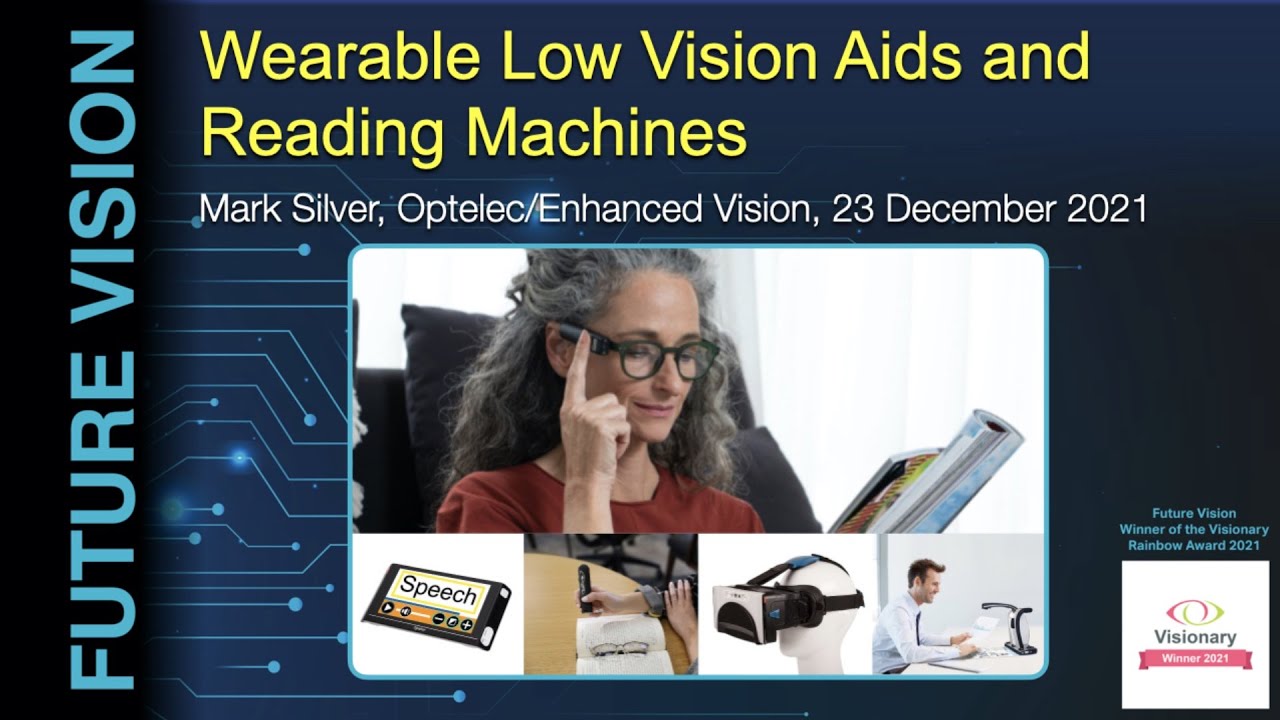
Optelec/Enhanced Vision are manufacture and supply Electronic Low Vision aids. In this demonstration, Mark Silver from Optelec/Enhanced Vision demonstrates a selection of reading machines and wearable low vision aids.
Products mentioned in this video
• Smart Reader HD – https://uk.optelec.com/products/srhe1d-srhe1d.html
• Orcam MyEye Pro – https://uk.optelec.com/products/ormy001-orcam-myeye2.html
• Orcam Read Pro – https://uk.optelec.com/products/orcread001-orcam-read.html
00:00 – Start
00:13 – About Future Vision
00:58 – Introduction
01:24 – About Optelec/Enhanced Vision
02:34 – Smart Reader – Demo
06:43 – Orcam Read
09:31 – Text to Speech and Magnification
10:23 – Wearable Technologies
11:07 – Wearable Device from the 1990s
12:31 – Orcam MyEye
15:10 – Optelec Compact 6 HD
16:05 – Compact Wear
19:19 – EyeDaptic
21:17 – Pricing
23:18 – Questions and Answers
23:26 – Question – Text with Columns
24:58 – Question – Do you need Wifi
25:24 – Question – The role of the mobile phone for the Eyedaptic
26:05 – Question – Location of the camera in the Eyedaptic
26:39 – Question – Eyedaptic Availability
27:03 – Question – Ease of Use
29:32 – Question – Home Demonstration
31:23 – Question – Scanning Books with the Smart Reader
32:25 – Question – OrcamRead Position Guidance
35:05 – Question – Ability to Change Voices
37:39 – Question – Benefits of multifunction devices
38:51 – Question – Future of Low-Vision Technology
44:16 – Dedicated vs Multifunction Devices
45:36 – Wrap UP
45:47 – Outro
46:19 – Credits
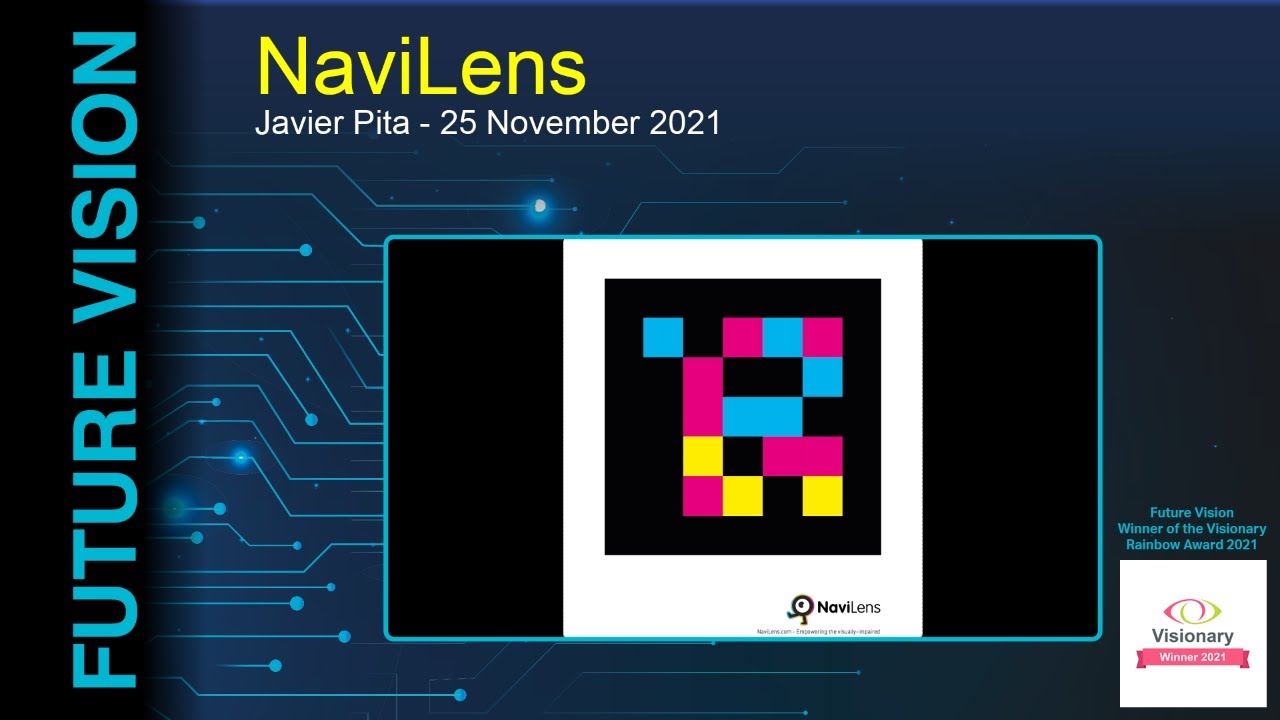
NaviLens is a labelling and signage system designed for people with sight loss. The user downloads the free NaviLens app onto their smartphone, when their phone’s camera detects a NaviLens tag (like a QR Code) it will read out the sign or label in the user’s own language. In this presentation, Javier Pita, CEO of NaviLens demonstrates the system and answers questions.
00:00 – Start
00:07 – About Future Vision
00:52 – Introduction
01:19 – Javier Pita
02:04 – How NaviLens was created
06:58 – Validation by users and Visually Impaired Organisations
08:09 – Current Use Cases
09:34 – Outdoors – Bus Stops
10:34 – Demonstration
11:16 – Automatic Translation
16:28 – 360 Vision – Augmented Reality
19:04 – Subway Wayfinding Challenge
21:56 – Accessible Museums
23:47 – Accessible Packaging – Kelloggs Coco Pops
24:47 – Demo – Reading Coco Pops package
27:29 – Free NaviLens Codes for personal use
31:01 – NaviLens Free for Schools and Associations
31:57 – What’s Next – NaviLens 360 Vision
33:06 – Questions and Answers
34:38 – Question – Position of the NaviLens Labels
37:02 – Question – How many unique tags are possible
41:01 – Question – Visability of NaviLens Tag
44:03 – Question – When will alll products have NaviLens Tags
46:57 – Question – How do organisations get started using NaviLens
48:32 – Question – Alternative to a Mobile Phone
51:33 – Question – What are the navigation capabilities
54:34 – Question – Where can we see NaviLense in the UK
59:33 – Question – How is it monetized
01:03:08 – Wrap up
Lines vector created by rawpixel.com – www.freepik.com
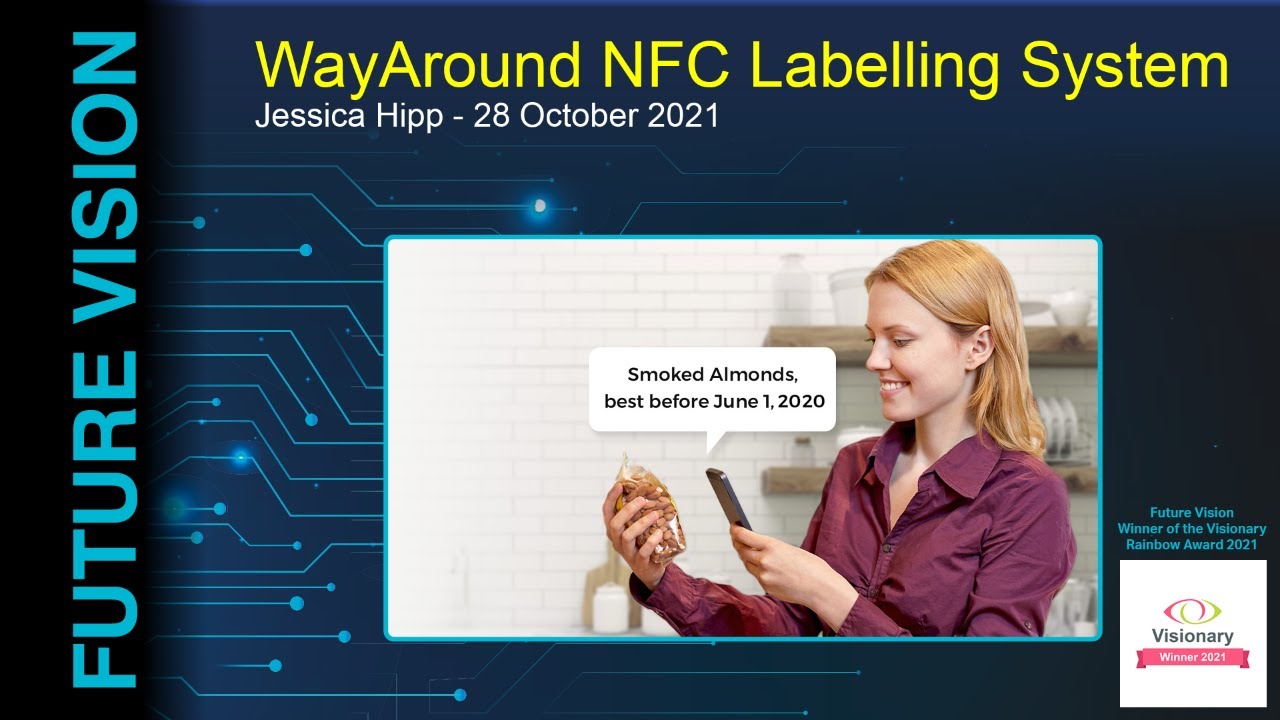
WayAround is a labelling system for people with sight loss. It allows you to label food, clothes, CDs or anything else you can think of using a WayTag. WayTag allow you to create custom labels for your items and have them read out to you when you scan it with your mobile phone. In this Video Jessica Hipp of WayAround demonstrates the WayAround system.
Website www.wayaround.com
UK Distributor
Bryan’s Quest – https://bryansquest.org
Promo Code
5% off any purchase through the Bryan’s Quest online shop. Valid until 25 December 2021 -Quote FV5
00:00 – Start
00:58 – Intro
03:20 – What is WayAround
05:23 – Demonstration of WayAround
05:39 – App User Interface
09:57 – Scanning a Tag
11:19 – Additional Details
13:55 – Question – How do the buttons attach?
16:29 – Question – Do they need power?
17:28 – Question – Lifespan
18:01 – Question – Durability
20:13 – Tag Styles
28:00 – Quesion – Tagging DVDs and Tag Database?
30:56 – Question – Scanning Barcodes
33:40 – Question – Can you rewrite the information on a tag
34:18 – A Users Experience of WayTags
40:46 – Pack Sizes and Pricing
43:04 – WayAround Contact Information
43:39 – Questions and Answers
47:23 – Question – Scanning Multiple Tags
49:56 – UK Promo Code
50:58 – Wrap up
Lines vector created by rawpixel.com – www.freepik.com
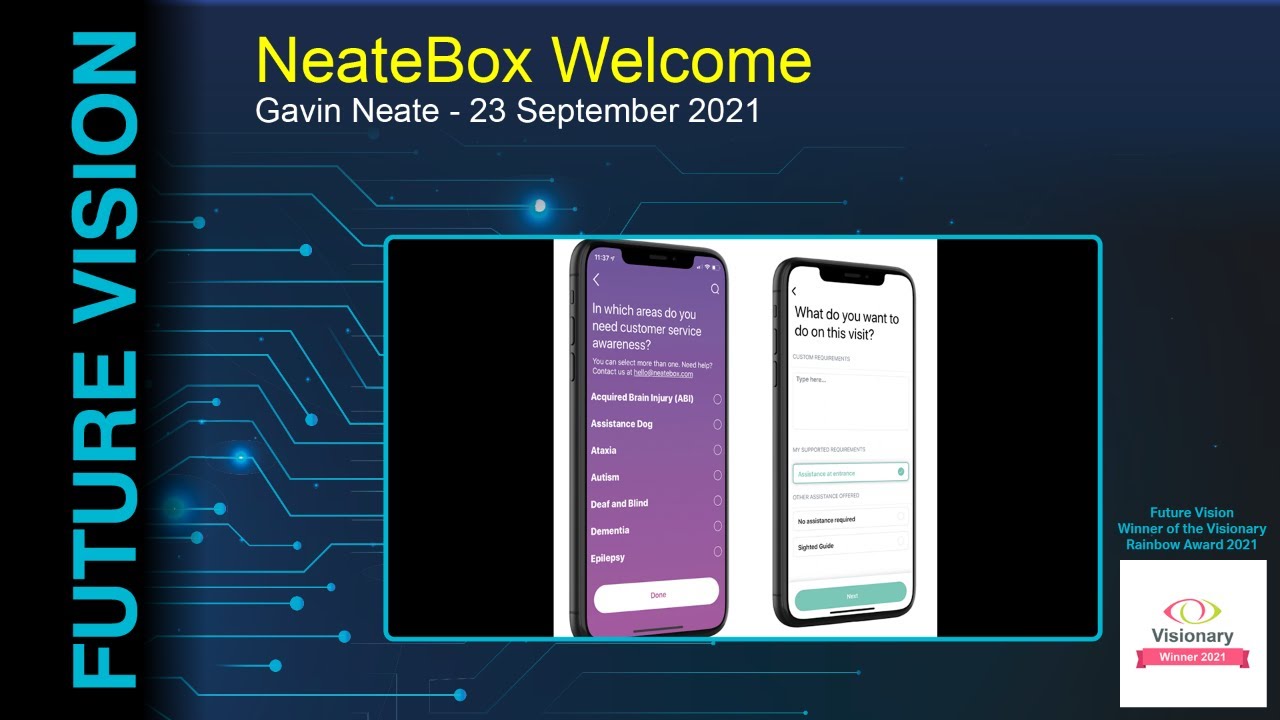
NeateBox Welcome allows customers to inform a venue of any access requirements (ie guide dog user, hard of hearing, Autism etc) they may have before they arrive. In this Video Gavin Neate from NeateBox demonstrates how the system works both for customers and venues and answers questions.
00:00 – Start
00:55 – Intro
01:23 – Gavin Neate
02:40 – History of NeateBox
07:34 – About NeateBox Welcome
13:55 – Question – Using Neatebox with other services
15:50 – Question – Use by Emergency Services
17:08 – Question – Interacting with Public Transport
20:31 – Question -Data Privacy
21:58 – Question – Privacy
23:54 – Question – Abuse of the System
25:41 – Demonstration of NeateBox Welcome
41:51 – Question – Getting Business to sign up
41:51 – Question and Answers
44:15 – Question – How are shop floor staff notified of a booking
48:31 – Question – How to find venues in the App
49:48 – Question – Your Profile
52:43 – Question – Unplanned Visits
54:36 – Question – Regular Visits to the Same Venue
55:37 – Questions – Availability to give talks
57:43 – Question – How are you recruiting users
01:00:47 – Advantages over traditional Disability Awareness Training
01:02:36 – Question – Any Competitors
01:03:48 – How to sign up
01:04:55 – Question – How to cancel a visit
01:05:06 – Question – Notifying the business that you’ve arrived
01:06:11 – Outro
Lines vector created by rawpixel.com – www.freepik.com
In this video, Stuart Lawler of Sight and Sound demonstrates using the Jaws Screenreader to check, send and receive email in Outlook and navigate a webpage using Microsoft Edge.
00:00 – Start
00:53 – Intro
01:19 – Stuart’s Intro
02:20 – Jaws 2022 BETA
03:04 – Today’s Session
04:33 – Ways of Accessing Email
04:41 – Web Based EMail
05:11 – Using an Email Client
05:49 – Office 365
08:26 – Thunderbird Email Client
09:16 – Starting Outlook
10:31 – Outlook Inbox
10:58 – Status Information
13:47 – Dismissing a reminder
14:25 – Jump to bottom of message list
14:55 – Listing unread messages
15:40 – Opening a email
16:28 – Close Message
17:05 – Switching between folders
18:19 – Go to Inbox
18:29 – Outlook Calendar
20:24 – Jump to next event
20:39 – Move to next day
21:52 – Return to Inbox
22:07 – Create new email
23:19 – Read Email Address
25:24 – Send Message
27:04 – Add File Attachment
29:30 – Viewing FIle Attachments
31:08 – Using the Web with Jaws
31:38 – Supported Web Browsers
31:56 – Google Chrome
32:09 – Microsoft Edge
32:43 – Firefox
32:59 – Other Browsers
33:13 – Internet Explorer
33:55 – How Jaws Interprets a webpage
34:56 – Virtual Cursor
36:00 – Launching Microsoft Edge
36:11 – Navigate to a website
37:41 – Do a Google Search
37:51 – Forms Mode
38:57 – Entering the search term
39:18 – Navigating Search Results
39:48 – Browse by headings
40:57 – How google uses headings
42:01 – Navigating to a search result
43:05 – Go Back to search results
43:17 – Go to Previous Headings
44:10 – Navigating a website
44:15 – Searching for text
45:00 – Jaws Find Command
46:56 – Jump to Line
48:45 – Place Markers
49:33 – Finding T Shirts on the Retina UK Website
52:44 – Questions and Answers
Lines vector created by rawpixel.com – www.freepik.com
Graham Page from Thomas Pocklington Trust hosts a Technology Question and Answer Session. He covers a wide variety of topics including accessible TV, Navigation apps, scanning and reading apps, listening to audiobooks.
00:00 – Start
00:12 – About Future Vision
00:51 – Intro
01:43 – Graham Page
01:52 – Vitaltech Website
03:03 – Types of Technology
08:38 – Navigation Apps
10:35 – Bone Conduction Headphones
13:21 – Blind Square
15:23 – WeWalk
16:48 – Smart Canes
19:13 – Listening to Radio
21:19 – Speech Radio BWBF
21:54 – MyTuner Radio
24:04 – Synapptic Mobile Phone
25:36 – Mobile Phones
26:14 – Split Tap
27:27 – VoiceOver Rotor Gesture
27:50 – Alternative to Rotor Gesture
28:54 – Simple Mobile Phones
29:12 – Blind Shell Classic
30:20 – Emporia Mobile Phone
33:16 – Audiobooks and Reading
34:56 – USB Audio Players
36:03 – Downloadable Audiobooks
36:29 – RNIB Library Skill – Alexa
38:06 – RNIB Newsagent
40:18 – Using your phone for reading
40:32 – Voice Dream Reader
41:02 – Seeing AI
43:00 – Sullivan+
44:30 – KNFB Reader
45:33 – Watching Television
46:16 – Voice Guide
47:19 – Sky TV Accessibility
47:49 – 555 TV Guide
48:17 – Voice Remote
48:30 – Virgin Media
50:18 – iPhone Copy and Paste
52:04 – Bluetooth Keyboard
57:12 – Accessible Radio
01:00:53 – End Credits
Background vector created by starline – www.freepik.com
Lines vector created by rawpixel.com – www.freepik.com
In this Video, Antony Horner from sight airedale looks at how smart speakers can be used by people living with sight loss. The video covers using Alexa to get general information, controlling the devices in your home with your voice and home automation. The video also shows methods of using Alexa for entertainment, such as searching a TV Guide, Listening to BBC Radio content, listening to audiobooks and having books read to you.
Contents
00:00 – Start
00:10 – Introduction
00:59 – In This Session
01:35 – What is a Smart Speaker
02:31 – Virtual Assistants
05:12 – Time, Date, Timer, Reminders
05:37 – Demo – Using alexa for general knowledge
06:25 – Smart Home Devices
08:45 – Demo of Dyson Air Purifier
11:15 – Demo – Hive Central Heating
13:20 – Demo – Smart Lighting
15:03 – Home Automation
16:31 – Demo – Setting up a routine
24:23 – Entertainment
24:59 – Demo – Searching TV Guide
26:35 – Demo – BBC Sounds
27:40 – Amazon Music
29:08 – Demo – Listening to Music
30:40 – Listening to Books
31:31 – Demo of RealSAM
37:46 – Audible
39:05 – Demo – Audible
42:32 – Demo – Listen to Kindle Books
44:04 – Questions and Answers
59:18 – Outro
Lines vector created by rawpixel.com – www.freepik.com
Music vector created by GarryKillian – www.freepik.com
Tim Ward from Sight Advice South Lakes looks at Assistive Video Technologies for people with sight loss. This is where you can connect to a sighted helper via a video call who can help read labels, signs or guide you round a building.
Contents
00:00:00 Start
00:00:51 Introduction
00:01:23 What is Assisted Video Technology
00:05:05 BeMyEyes
00:06:19 Demonstration of BeMyEyes
00:10:48 Envision
00:12:14 Envision Demonstration
00:17:12 Aira
00:18:23 Aira Demonstration
00:22:14 Where to from here?
00:22:48 Points of Interest
00:25:20 Questions & Answers
00:47:25 Outro
Lines vector created by rawpixel.com – www.freepik.com
Matt Harrison of My Sight Notts, looks at Artificial Intelligence Apps that help describe the surroundings to people with sight loss. The apps featured are Seeing AI, Sulliven+, Matt Also looks at using Seeing AI and Speech Sticker to identify and label products using barcodes.
00:00:00 Start
00:00:46 Intro
00:02:11 Matt’s Introduction
00:04:01 What is artificial intelligence
00:07:11 Why use AI apps
00:09:28 Seeing AI
00:14:46 Seeing AI Demo
00:21:47 Sullivan+
00:24:33 Sullivan Demo
00:30:06 Pros and Cons of Seeing AI
00:31:58 Pros and Cons of Sullivan+
00:34:40 Barcode Scanning
00:38:30 Barcode Scanning Demo
00:43:19 Be My Eyes
00:47:28 Q&A
Background vector created by starline – www.freepik.com
Lines vector created by rawpixel.com – www.freepik.com