Use Siri Shortcuts and Seeing AI to read Barcodes

Use Siri shortcuts and seeing AI to scan and recognise products

Watch our instructional video on using Siri Shortcuts to read Barcodes

Meet Mary

Mary has Macular Degeneration and enjoys listing to her CD collection however she struggles to read the titles of her CDs. The only way she knows that she’s got the right disk is by putting it into her CD player and playing the first track.

In this article, we’ll show how Mary can use her iPhone, Siri and Seeing AI to tell her what CD she is holding.

What is Seeing AI

Seeing AI is an app developed by Microsoft that uses artificial intelligence to recognise text, currency, faces and products and speaks the result.

Installing Seeing AI

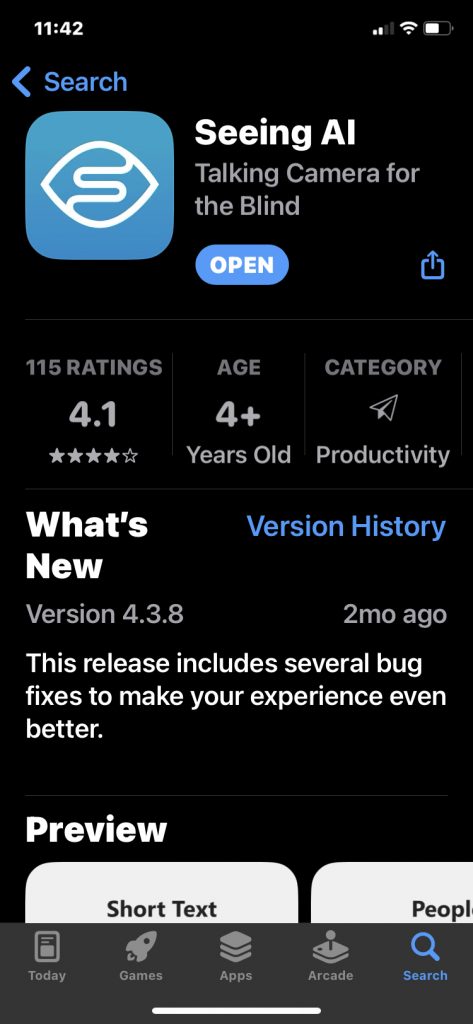
If you don’t already have seeing AI, download it from the Apple App Store. VoiceOver will announce it as “Seeing AI talking camera for the blind” the app is free.

Image shows the seeing AI app in teh app store
How Seeing AI appears in the Apple App store.

Setting up Siri Short Cuts

  1. In Seeing AI, navigate to the menu button in the top left-hand corner. VoiceOver will announce “Menu – Button
  2. Swipe right with one finger until VoiceOver announces “settings – button“, then double tap
  3. Swipe right until VoiceOver says Configure “Siri Short Cuts Button”, then double tap
  4. We want to recognise a product so swipe right with one finger until you hear “recognise product
  5. A dialogue box will now appear on the screen and VoiceOver will say “edit in short cuts”, if VoiceOver doesn’t announce it, place your finger in the middle of the screen until you hear VoiceOver say “Hey Siri.
  6. The default phrase is “Hey Siri, Recognise Product” – You can change this to your own phrase by swiping right until you hear “change voice phrase”, the double tap and say the phrase you want to use, you will then hear a beep and voice over will say “insertedfollowed by your phrase, if you’re happy with this swipe right until you reach done.
  7. Your Siri short cut is now set up. Double tap on the back button to return to the main seeing AI screen.

Now all you have to do is say “Hey Siri, Recognise Product”, when Seeing AI sees the barcode it will announce the product name.

Conclusion

So now Mary can use the barcode reader on Seeing AI to tell her what CD she has in her hand. If the CD didn’t exist in the database she could also use the short text feature to read the title, or the document feature to read the track listing.

Mary can also use this to identify other products in her house, such as items in Kitchen cupboards. Or even when she’s out shopping, for Seeing AI to work though you do need an internet connection.

Why HTML Headings are important for accessibility

Having correctly structured HTML headings in documents is essential for helping people using accessibility technologies find their way around your webpage. But what are headings, and why are they so important.

Video explaining HTML Headings

What are HTML Headings

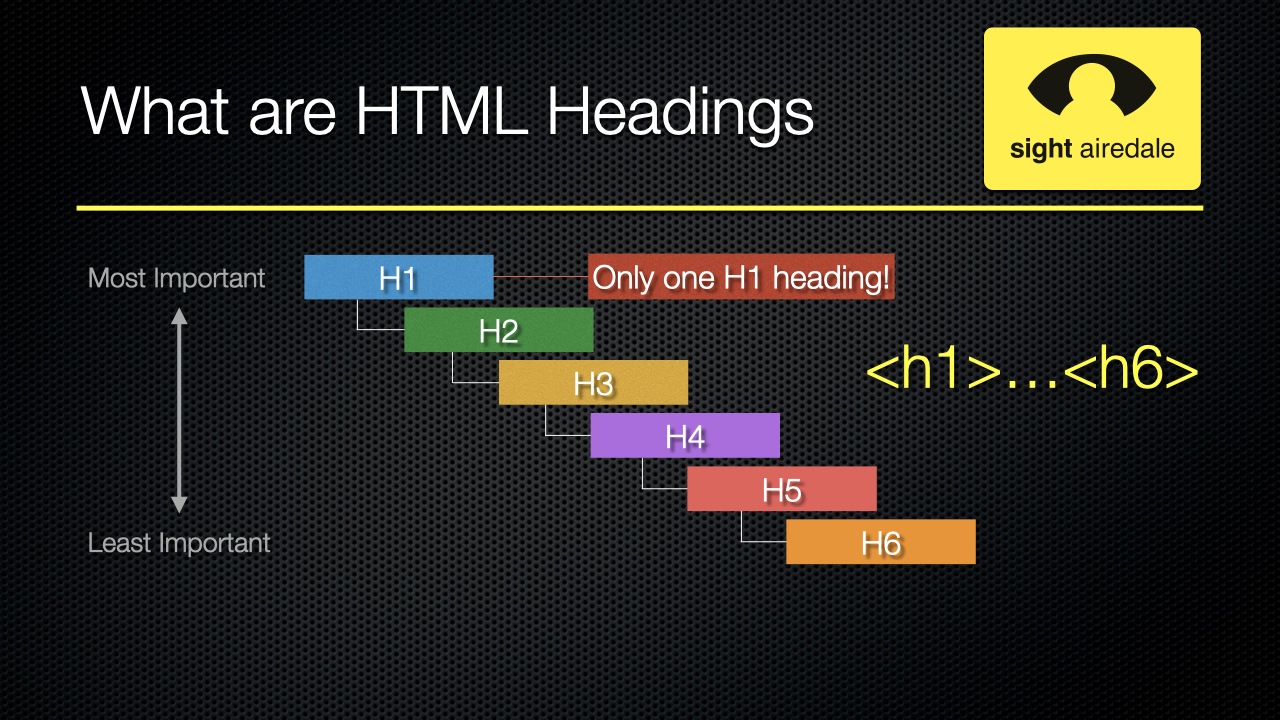
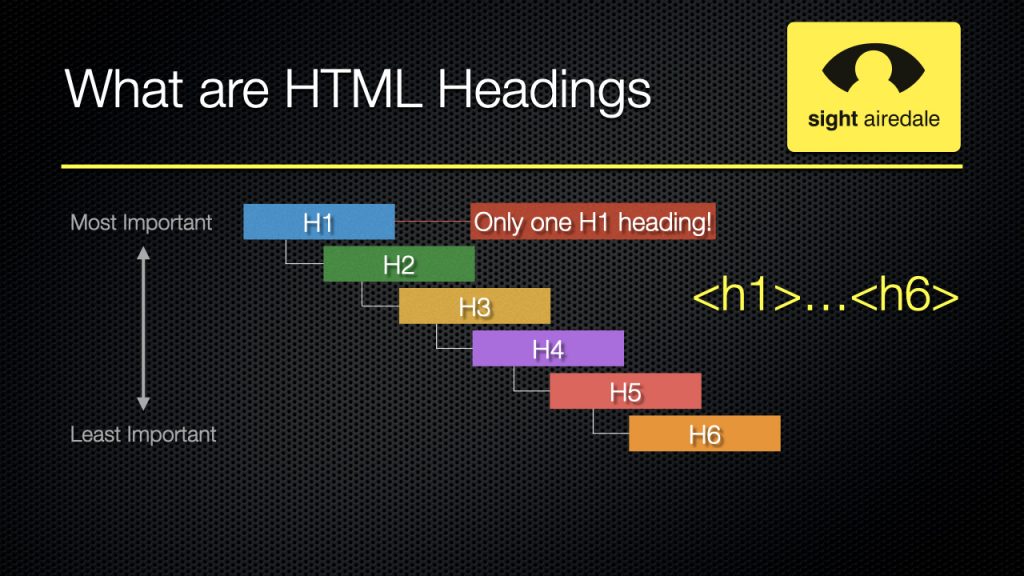
HTML has six heading levels labelled <h1>..<h6> with <h1> being the most important heading and <h6> being the least important.

The <h1> heading is only used once per page and represents the main heading of the page. The remaining levels can be used as many times as needed but must be used in order.

How to write Headings in HTML

The code for HTML headings is as follows:-

<h1>Main Heading Text</h1>
	<h2>Section Heading Text</h2>
		<h3>Subheading Text</h3>

Why you should use headings

When a sighted person looks at a webpage, they use factors such as the size, colours, fonts and position of the text to get clues to how the page is structured.

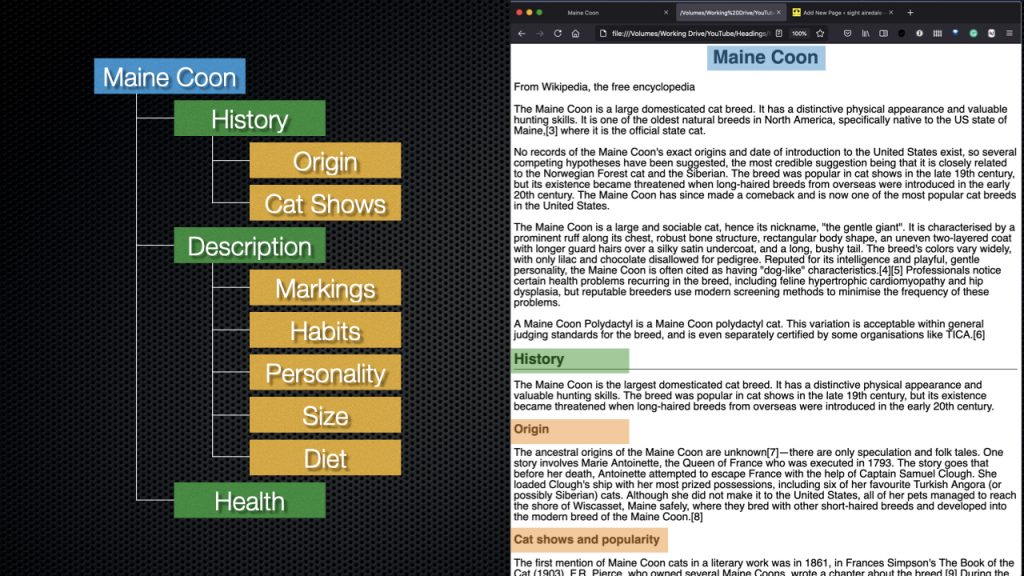
In this example, the main heading <h1> is the largest, centred and bold. In addition, the section headings <h2> are bold and have an underline, and the subheadings <h3> for each section are bold.

Shows headings, wth colour coded equivilent HTML headings

This is what the HTML code looks like for the heading structure in this document.

<h1>Maine Coon</h1>
    <h2>History</h2>
        <h3>Origin</h3>
        <h3>Cat Shows</h3>
    <h2>Description</h2>
        <h3>Markings</h3>
        <h3>Habits</h3>
        <h3>Personality</h3>
        <h3>Size</h3>
        <h3>Diet</h3>
    <h2>Health</h2>

When a person uses a screen reader, they have access to none of these navigational clues. Screen readers read text on the screen; they have no way of knowing what is and is not important. So we have to tell them the structure of the document, one of the ways of doing this is by using HTML headings. The screen reader user can then use navigation tools built into their screen reader to move around the page more efficiently.

Using headings correctly will also help search engines to know what is important on the page. There are several tutorials available on YouTube about headings and search engine optimisation.

Common mistakes with headings

Using formatted text instead of headings

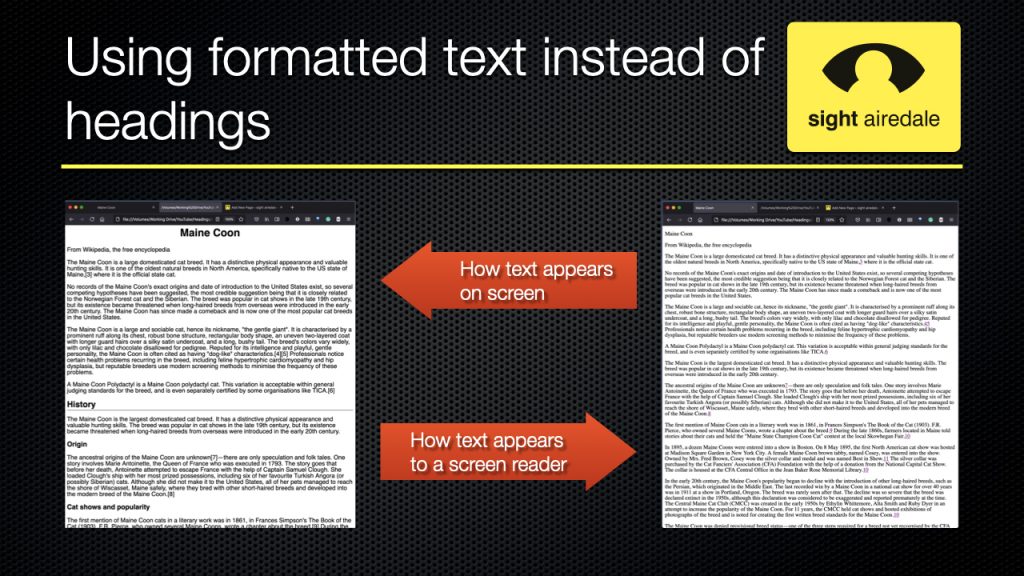
Slide showing document with what appear to be headings, and how a screen reader would see teh same document.

In this example, the document on the left appears to use headings; however, the text has been formatted to look like headings. This means to a screen reader, it has no structural information and looks like a mass of text on the right.

Using headings for things that arn’t headings

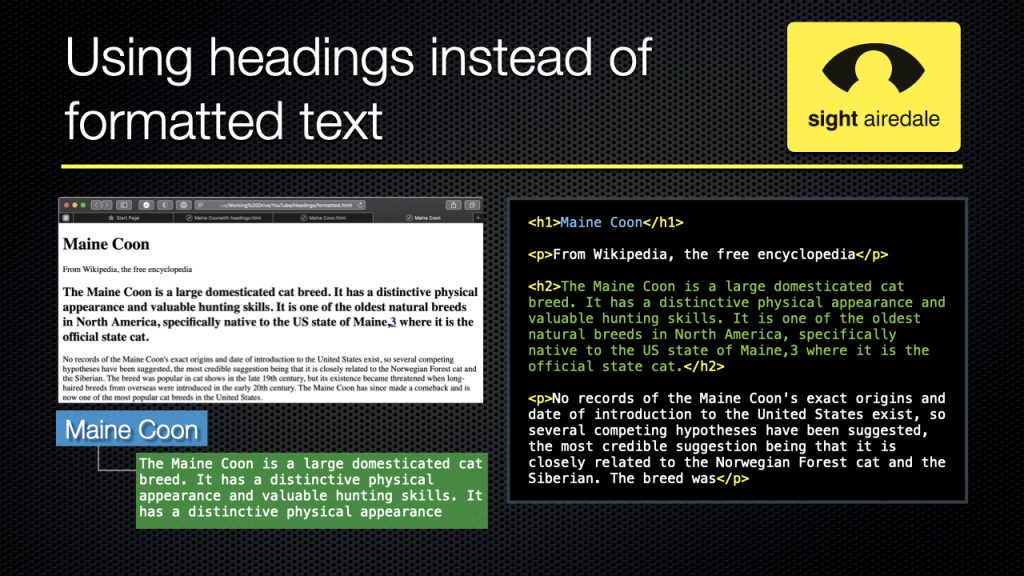
Shows a H2 Heading being used to make the first paragraph of a document large and bold.

It’s quite common on web pages for the first paragraph of an article to be in a larger font, and bolder than the rest of the body text. However, in this case, <h2> level heading has been used to achieve this. If you need to format a paragraph, then this should be done with the stylesheet for the web page

Using Headings out of Order

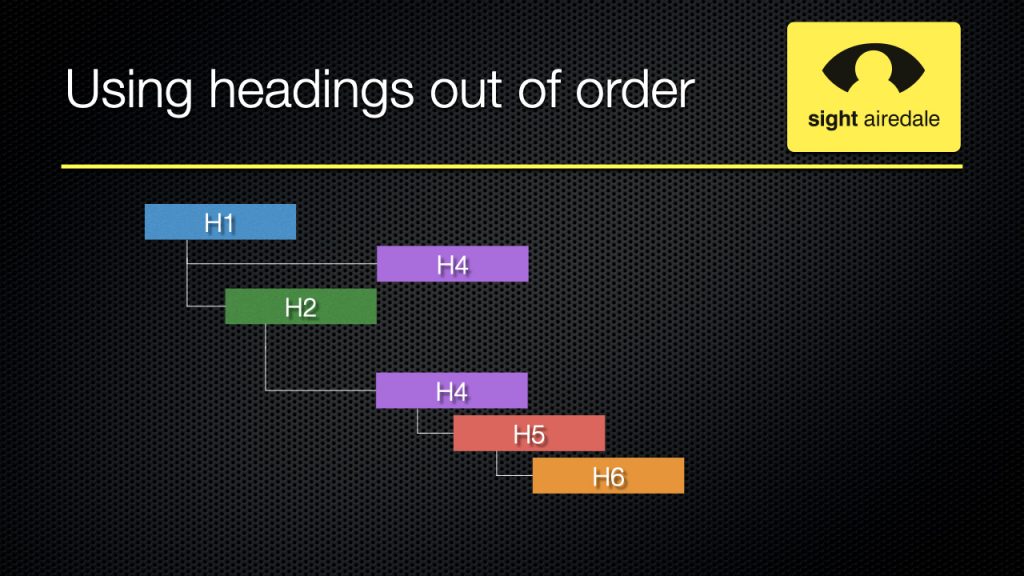
Example showing tree diagramme of heading out of order.

The headings should be in a hierarchical order but in this case, we can see that <h4> comes after <h1>, we’ve got <h2>, but then <h3> is missing.

Ways to check your headings