
About this Article
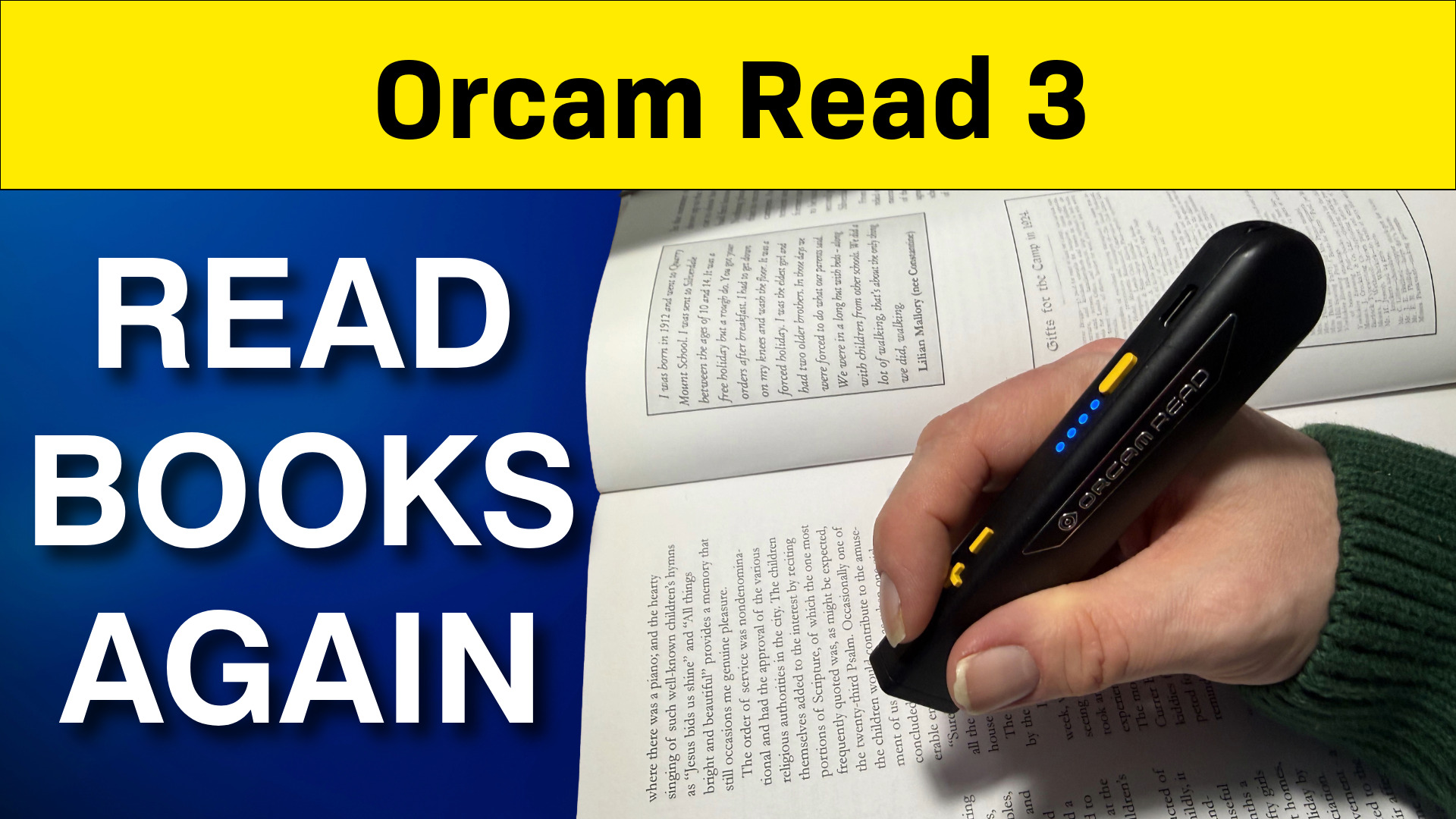
If you struggle with reading, whether due to low vision or Dyslexia, the OrCam Read can help. This is a pocket sized text to speech scanner. In this article, I’ll introduce you to the OrCam Read 3 and how you can use it to scan documents, notices, product barcodes, and recognise bank notes.
Watch Our Tutorial on the OrCam Read 3
Unboxing the OrCam Read 3
In the box you get the following:-
- Orcam Read 3
- The stand
- Small external speaker
- User guide
- USB charging plug (with region-specific plug),
- USB cable
- Earphones
- Lanyard
- Hard storage case
- Microfiber cloth for cleaning the lenses.
What the Buttons Do
- Start and stop reading
- Wake the Orcam Read 3 from standby
- Make selections in the audio menu
- Double press to pause/resume reading, start voice control, or exit audio settings
Volume Buttons (+ and -)
- Increase or decrease volume
- Navigate through audio settings menu
- Move forwards and backwards within a document in navigation mode
- Press both simultaneously to toggle laser pointer mode
Power Button
- Press and hold for 2 seconds to turn on
- Press once to put the device into standby mode
- Press twice to turn the device off completely
USB-C Connector
- Used for charging
3.5mm Audio Jack
- Connect headphones or external speaker
Eyelet
- Attach a lanyard for carrying convenience
Customising the Voice and Reading Speed
Changing the Voice
Change the OrCam Read 3 Voice Using Buttons
- Press and hold the Power button, then press the Volume Up button to enter the settings menu.
- Use the Volume buttons to navigate to General Settings and press the Trigger button to select.
- Navigate to the Voice Menu and press the Trigger button.
- Use the Volume buttons to choose the desired voice (e.g., male or female) and press the Trigger button to confirm.
Change the Voice Using Voice Commands
- Double press the Trigger button to activate voice control.
- Say, “Hey Orcam, change voice.”
- Use the Trigger and Volume buttons as prompted to select and confirm the new voice.
Adjust Reading Speed of the OrCam Read 3 Using Voice Commands
- Double press the Trigger button to activate voice control.
- Say “Hey Orcam, read faster” or “Hey Orcam, read up” to increase reading speed.
- Say “Hey Orcam, read slower” or “Hey Orcam, read down” to decrease reading speed.
Connecting a Bluetooth Speaker to the OrCam Read 3
- Put your Bluetooth speaker into pairing mode.
- Double press the Trigger button on the device and say Connect to Bluetooth to activate Bluetooth connection mode.
- Listen to the list of available Bluetooth devices announced by the Orcam.
- Use the Volume buttons to scroll through the list of devices s until you hear the name of your Bluetooth speaker.
- Press the Trigger button to select and connect to the Bluetooth speaker.
- Wait for the Orcam to announce “Connection successful” to confirm the connection.
- The Orcam will now play audio through the connected Bluetooth speaker.
- To reconnect automatically in the future, ensure the Bluetooth speaker is turned on and in range; the Orcam will connect to the last paired speaker .
- To connect to a different Bluetooth speaker, repeat from step 1.
Scan a full document with the OrCam Read 3
- Wake the OrCam Read 3 from suspend mode by pressing the power button once.
- Hold the device naturally like a pen so that your finger rests on the Trigger button, which is the round button located on the left side of the unit.
- Press and hold the Trigger button.
- Lift or position the device until the entire document you wish to scan is captured within the red laser rectangle.
- Release (leave go of) the Trigger button to take the picture and begin the text-to-speech process.
- If you need to stop the Orcam Read 3 from reading at any point, simply press the Trigger button once.
Using Arrow Laser Mode
Why Use Arrow Laser Mode?
You would want to use Arrow Laser Mode when you only need to read a specific part of a document or notice rather than the entire text. This mode provides a red mouse-style pointer that allows for high precision, making it ideal for reading a single line in a menu, a specific heading, an address on a letter, or a sign on a door.
Instructions for Using Arrow Laser Mode
- Toggle the mode: Press both the Volume Up (+) and Volume Down (-) buttons at the same time.
- Confirm activation: Listen for the Orcam Read 3 to announce “Arrow Laser Mode”.
- Activate the laser: Press and hold the Trigger button (the round button on the left side).
- Aim the pointer: Look for the red laser arrow appearing on your document or the surface you are scanning.
- Target the text: Point the arrow directly at the specific line, heading, or word you want the Orcam Read 3 to read.
- Capture and read: Release (leave go of) the Trigger button to take the scan and begin the text-to-speech process.
Using the Orcam Read 3 Stand Mode
To use the Stand Mode on the OrCam Read 3 for hands-free reading or scanning multiple pages, follow these steps:
- Enable Stand Mode in Settings: Before the Orcam Read 3 can be used in the stand, you must enable the feature. Enter the settings menu by holding down the power button and pressing a volume button. Navigate to General Settings, then Stand Mode, and select Manual Mode. Manual mode is recommended over automatic mode because the automatic setting will exit stand mode once the battery is fully charged.
- Position the Orcam Read 3 : Place the OrCam Read 3 into the Orcam Read 3 holder at the top of the telescopic stand. Be aware that the holder does not lock the Orcam Read 3 in place; if you tip the stand backwards, the Orcam Read 3 may fall out.
- Adjust the Height: Use the clip on the telescopic arm to raise or lower the stand to the desired height above your document.
- Activate Stand Mode: Once the Orcam Read 3 is in place, activate the mode by saying the voice command, “Hey OrCam, turn on stand mode”.
- Initiate Reading: You can start reading the document under the camera by either pressing the round Trigger button on the side of the device or by using the voice command, “Hey OrCam, read everything”.
- Use Hand Gestures: To stop the Orcam Read 3 from reading while it is in the stand, simply place your open hand flat on the page under the camera.
- Point to Specific Text: You can also point your finger at a specific heading or block of text to command the OrCam to start reading from that exact location.
Barcode Scanning
To use the barcode scanning feature on the OrCam Read 3, follow these steps:
- Enable the Barcode Reader: Access the settings menu by holding down the power button and pressing a volume button. Use the volume plus button to navigate to the “barcode reader initial menu” and press the Trigger button. Select “change barcode settings”, navigate to “enable manual barcode recognition”, and press the Trigger button to confirm.
- Position the Product: Hold the OrCam Read 3 approximately 30cm away from the product you wish to identify.
- Scan the Barcode: Press the Trigger button once to take a picture of the barcode.
- Listen for Identification: The Orcam Read 3 will use its internal database to announce the product name.
Limitations of Barcode Scanning
While the barcode scanning feature is a powerful tool for independence that does not require Wi-Fi to function, it does have several limitations:
- Database Scope: The internal database primarily consists of big-brand products. You may find that supermarket own-brands or products from small, local suppliers are not recognised by the Orcam Read 3.
- Regional Specifics: The database is location-dependent. For example, an Orcam Read 3 purchased in the UK will have a different product set than one purchased in Australia. Users must also regularly update their Orcam Read 3 software to ensure they have the most recent version of the database.
- Lack of Guidance: There is no audio guidance or physical feedback to help you locate the barcode on a package. Because you must find the barcode yourself, it may take multiple attempts or rotating the product several times before successfully capturing the code.
Bank Note Recognition
To identify currency using the OrCam Read 3, follow these steps:
- Power on the device: Ensure the OrCam is turned on by pressing and holding the power button for two seconds, or wake it from standby by pressing the power button once,.
- Position the device : Hold the OrCam naturally like a pen with your finger resting on the round Trigger button located on the left side.
- Aim at the currency: Point the device directly at the banknote you wish to identify.
- Capture the image: Press the Trigger button once,.
- Listen for the result: The device will process the image and announce the denomination of the note (for example, “20 pounds”),.
Supported Currencies
The OrCam Read 3 is capable of recognising banknotes from the following currencies:
- Swiss francs
- Euros
- Great British pounds
- Scottish pounds (recognised as a separate category)
- US dollars
- South African rand